Adding website links to your Sagens

Adding links to websites (or URLS) to your sagen enables you to extend the variety of content available in your projects. Incorporate YouTube videos, store pages, payment links, online games, surveys, quizzes and more.
Adding a new URL to your Sagen

To add a new url to your sagen project simply copy the path from the website itself.
1. Select the text
2. Press Ctrl+C (Cmd+C on OSX)
3. Return to Sagenverse
4. Click into the 3D editor (but not on the object you want to paste the url into)
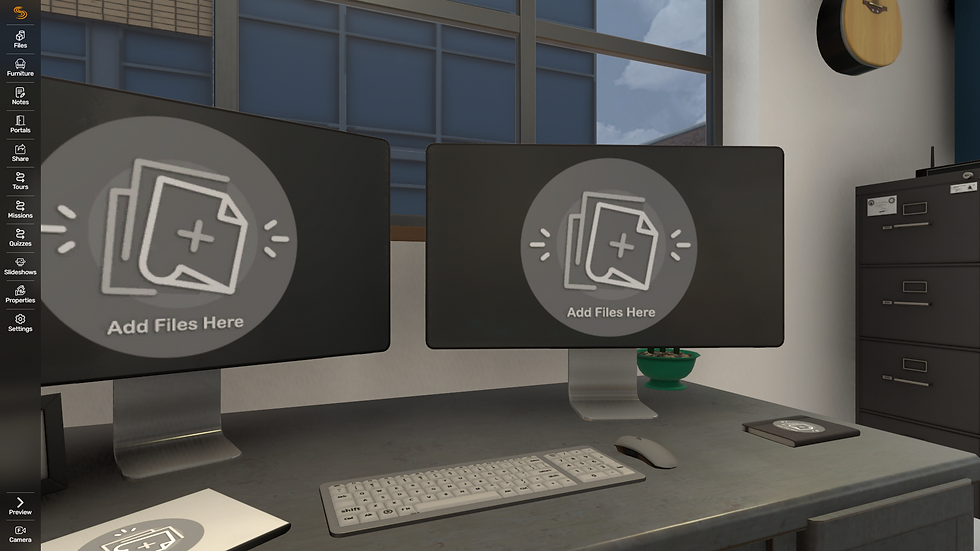
5. Press Ctrl+V (Cmd+V on OSX) to paste the URL into your sagen (it will paste where your mouse pointer is located)

once pasted, the URL will need to process a cover image (this can take up to 30 seconds)

Managing the viewing experience for your URLs
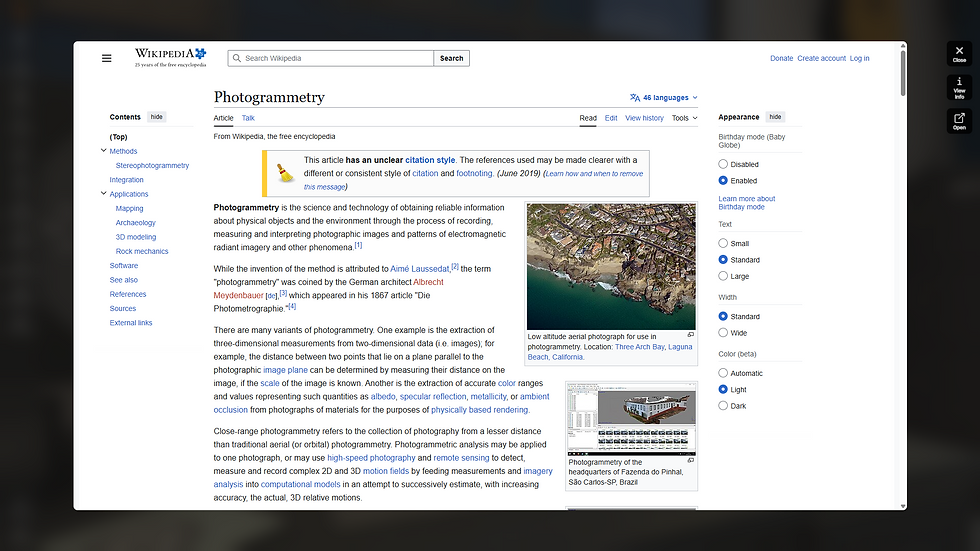
By default, your URLs will attempt to open in our "mini browser". This is the most immersive form of viewing the content. This setting is called Open in new tab" on the file properties menu.

In some cases, the mini browser will not be able to load the website, this is true with any website that cannot be embedded via an iframe. If this happens, you'll want to toggle the Open in New Tab option to on.

Customizing Cover Images for URLs
If you are not happy with the automatically created cover for your URL, you can replace it with an image of your choosing. See this article to learn more
Taking it further with some tips:
Since the Sagenverse mini browser acts as link for embeddable content, you can create a number of applications that enhance your user experiences. Check out some of these ideas and use cases: YouTube
Linking and presenting YouTube videos in your sagen unlocks a wealth of great content you can add to your projects. While you can simply paste a YouTube sharelink into your project, it will not work as well with the embedded viewer. You'll want to grab the YouTube's embed link. Here's how you can do that:
Find the video you'd like to share or include into your project and press the Share button and select Embed
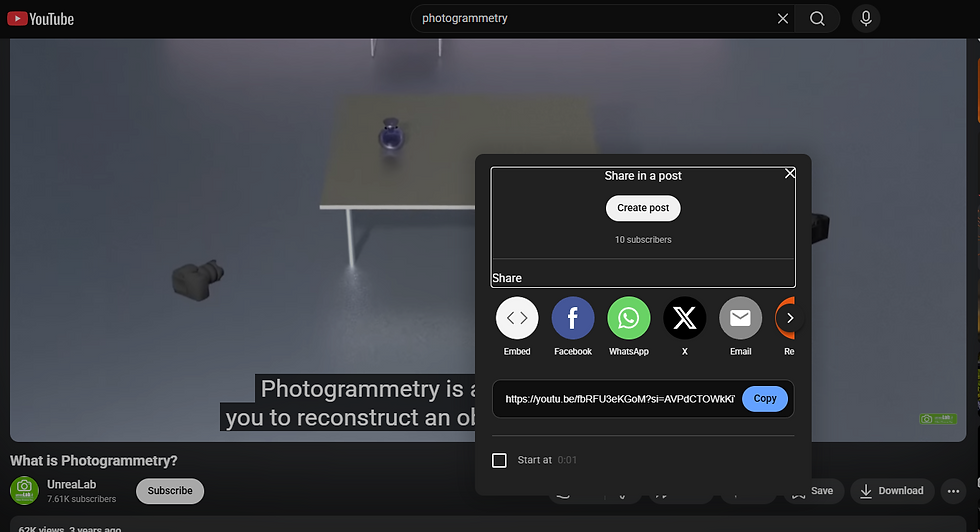
While in the embed video menu pop-up locate and copy the URL in the src= line: it will have a format like "https://www.youtube.com/embed/{videoID}" as the prefix, then the ID of the video (usually a series of 24 characters)

Paste the link into your sagen project. It will display the video's cover image
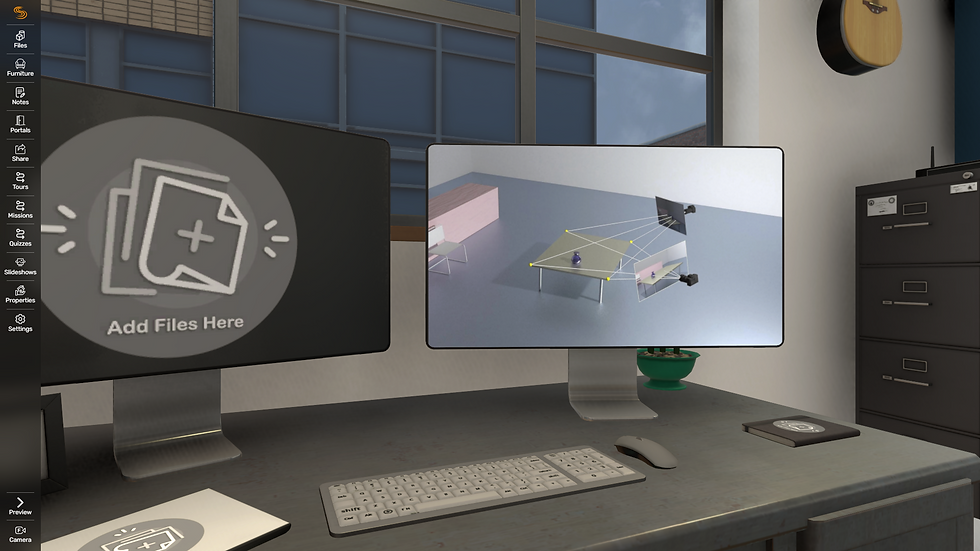
Your video will now open directly within the mini browser, keeping your audience within your sagen presentation!

Sketchfab
While you can import and stage your own 3D Models from Sketchfab within Sagenvere's 3D Editor, you may sometimes need to take advantage of their embedding capabilities. Here's how you can add an embedded Sketchfab scene into your sagen. 1. Locate a model on sketchfab and click on the embed button

Locate and copy the embed link it will be within the iframe script they provide.

Paste it into your sagen scene and wait for it to process.

Once processed the link will display the Sketchfab embedded cover image for the model!
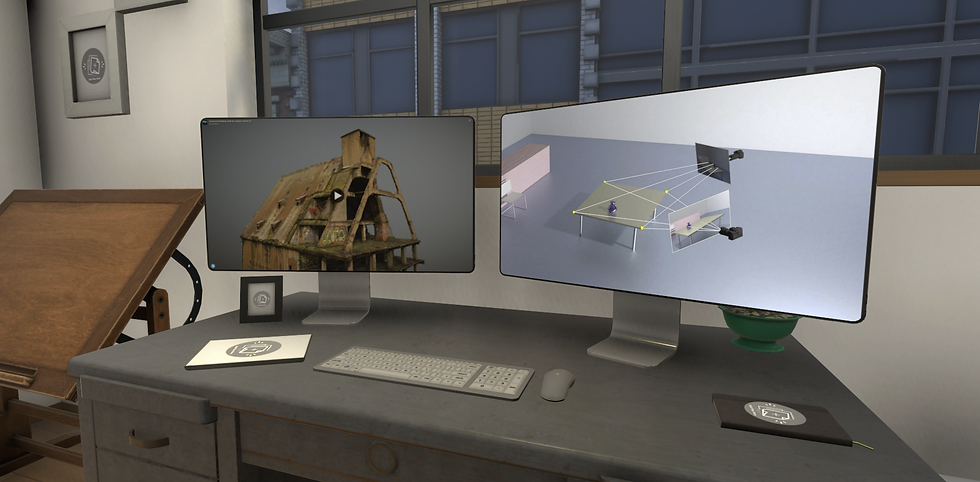
Opening the link will now load the Sketchfab scene into the mini browser!
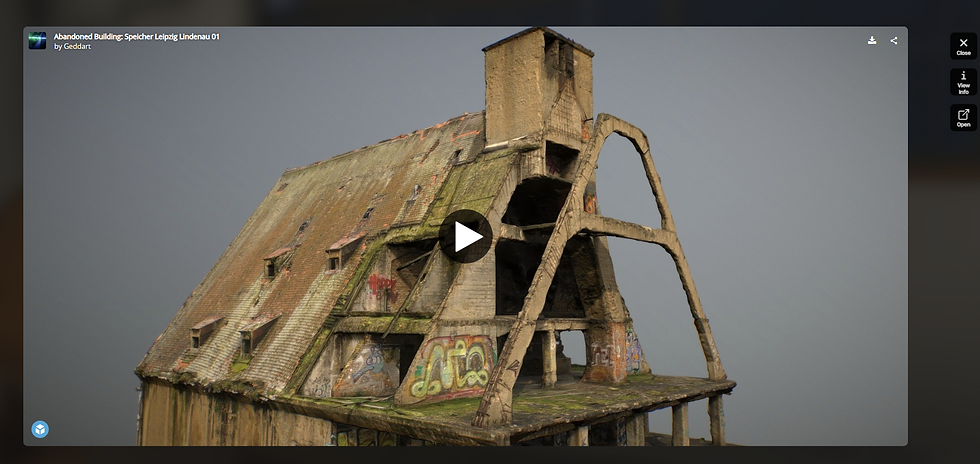
The model is presented and fully interactive.
Taking it even farther
There are numerous other services that can be embedded within your sagens.
Here are a few more ideas:
Add an interactive map from google
Add a booking widget for setting up meetings and booking appointments
Add your own custom data dashboards from Tableau or Power BI
Add in a Sound Cloud or Spotify playlist
Add in a survey or feedback form
Add a payment link to your online store