Managing Storage and Files - The Sagenverse CMS

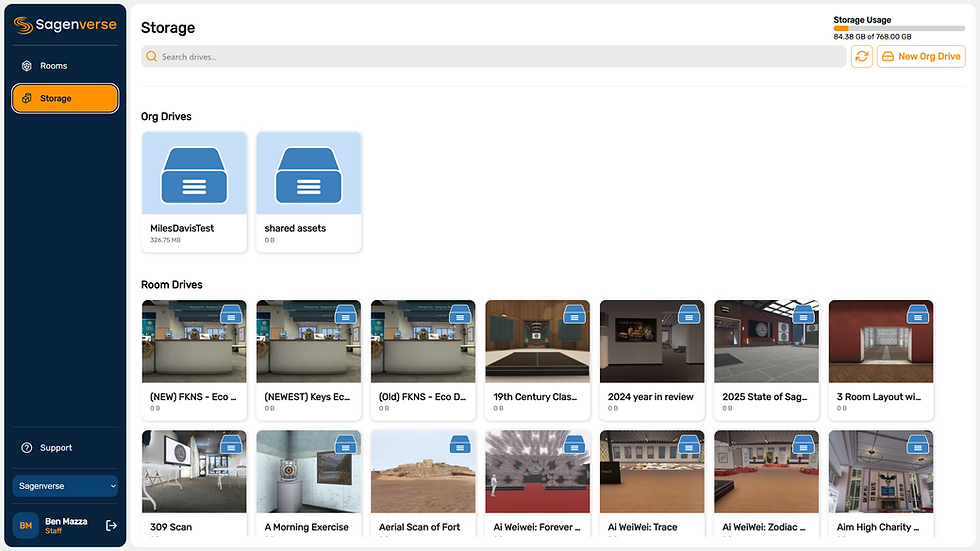
Sagenverse offers a built-in content management and storage system that populates your sagen room projects with your uploaded files. Based on your plan, your storage capacity will vary and can be tracked by reviewing the meter located on the top right of the storage dashboard

Working with Drives
Sagenverse offers two types of storage drives that enable creators to organize their content.
Org Drives - Org drives are designed for assets and files that will be utilized in many different sagen scenes. These org drives are available as a source within any sagen project you're working on.

Any number of org drives can be created to help you organize content as you see fit
Org drives support the creation of subfolders
To create an org drive press the create org drive button and provide it with a name when prompted.

Sagen Drives - Sagen drives are automatically created when a new sagen project is created. It will show the cover image of the sagen to help you recognize it.
Deleting a sagen drive also deletes the sagen
Sagen drives support the creation of subfolders

Note - Right clicking on a Sagen Drive will enable you to open it in the 3D editor
Managing Drives and Files

To open a drive - double click on it

Back to Drives - Returns you to the main storage page
Drive Name - Breadcrumb style navigation that will help you navigate sub directories and folders. Click on the names of the directory to open them. Search - Searches the current view for files and folders New Folder - Creates a new folder in the current view Copy - Copies the current selected items to the clipboard Paste - (if files are on clipboard) Pastes the currently held files/folders into the current view
Edit - Opens the edit menu for the currently selected file or folder
Delete - Deletes the currently selected files and folders THIS IS PERMANENT
Open Sagen - Opens the current sagen if you are viewing a sagen drive
Upload - opens the upload manager
Info - Toggles the information bar on the right margin of the menu
Filter - Filters view by media type
Sort - Sort by date of upload or by file name
Right Click Menu
You can access several additional shortcut controls by right clicking on your folders, drives and files.

Edit Metadata - Opens a form to change the folder name and description
Copy "name" - Copies the currently selected folder
Paste "name" - Pastes currently selected item within
Move To... - Moves selected folder to another folder (Note - this folder list is "flat" and does not show hierarchy"
Delete: Deletes current selection NOT Undoable
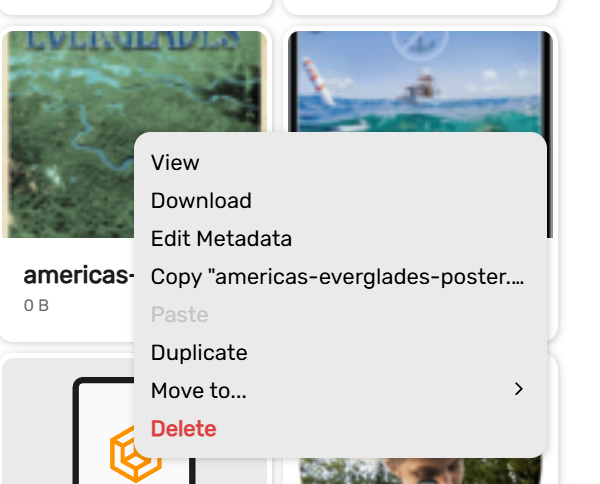
View- Opens the current file into the sagenverse content viewer
Download- Downloads the current file to your local machine
Edit Metadata - Opens a form that enables you to edit file details
Copy "name" - Copies the current file(s) Paste "name" - Pastes the currently copied items to this view
Duplicate - Makes a copy of the selected file and adds it to the current view
Move To.. - Moves the current selection to a folder of your choice within the project
Delete: Deletes the current file from your storage THIS is not undoable
Editing File Metadata

Editing files metadata enables you to add important details to your files for your guests and audiences.

Changing the cover image - Clicking the Yellow Pencil Icon will prompt you to upload a replacement image for the file's cover. This will replace the current thumbnail image with one you specify - this works for all media
Name: This is the name of the file as it will be seen by a guest and within your storage account (filenames are default) - but it is a good idea to review this for something more readable
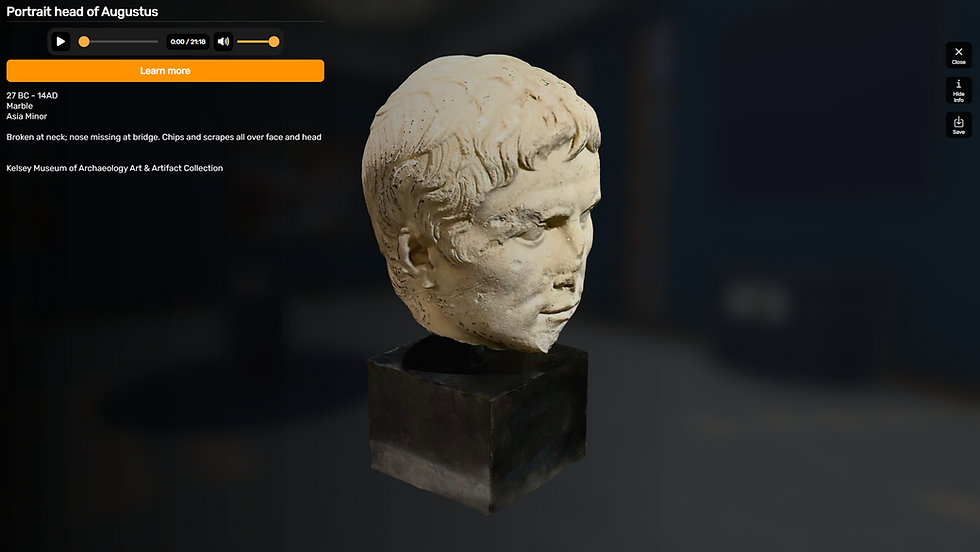
Description: This enables you to provide a detailed description for the file - this description is viewable on the content inspector
Reference URL Title: Optional link title (this appears as a text link when viewing the file in the file viewer)
Reference URL (the actual link): Optional URL that can be added to the file for additional information. This opens in a new tab for the guest
Referenece Audio Clip : Optional audio clip that enables you to include a verbal description or other sound a guest can play when viewing the file. (Choose a file from your current drive or uploading a new one )
Note - You must click save changes for them to take effect
Accessing your files from within the 3D editor
While in the 3D editor, pressing on the files tab will open your sagen's drive and provide access to your org drives.


