The Sagenverse Dashboard

Updated: Mar 9

The Sagenverse dashboard is the main project management interface for your sagen projects. Here is where you can:
Create, edit, and manage your sagen projects
View, manage and update your storage
Edit your account settings (profile image, password)
Get help with the app from our knowledge base
The menu to the left is organized by: Rooms - Your collection of rooms (sagens) Storage - Links to your room drives and organization drives
Support - Link to our support documentation and articles Organization Selector - If you belong to multiple organizations - you can change your view here Account Management - Link to your account details and logout button
Creating A New Sagen Project:

To create a new sagen, press one of the two create buttons located on the top left of the sagen lists (if you're just starting out) or in top right corner.

A template category selector will appear, here you can browse from the list of available templates available on your plan. Use the arrow buttons to navigate to the category (the item in the center is the current selection) and press Next
Note: if you'd like to start with an empty scene choose the open spaces category

Note: if you'd like to start with an empty room, choose the unfurnished rooms category


Once a category is selected, you can choose a layout from the list of options presented. Click on the image to get an animated preview of the room. Press the Next button to proceed to the next step.

In the last step, give your sagen a name and description and press Create to begin working on your new sagen project.
Managing Sagens From The Dashboard

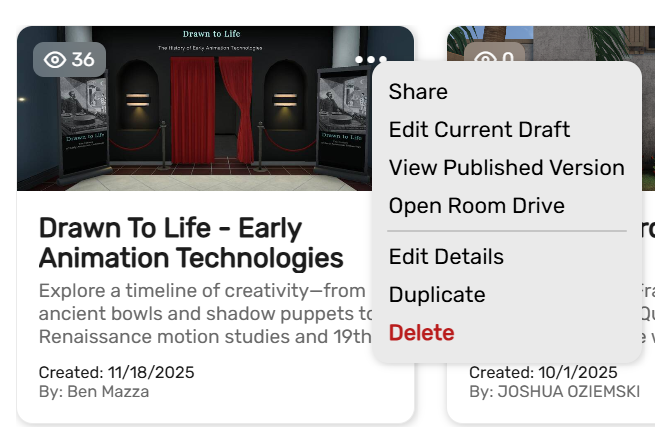
Each sagen project will provide you with some options - to view them press the ellipses button to reveal the overlay menu.
Share - Opens up the sharing and publishing menu
Edit Current Draft - Opens the sagen to the "head revision" for editing - this is the default action when selecting the card
View Published Version - Opens the sagen to the most recent published version - this is the deafult action when selecting the sagen on the mobile app.
Open Room Drive - Opens a shortcut to the project's storage drive.
Edit Details - Opens a form enabling you to change the name, description and the sagen.
Duplicate - Creates a fresh copy of the sagan and adds it to your sagen library
Delete - Deletes the sagen project along with all of the files in the sagen drive This is not undoable
Sorting Sagens View:
Using the dropdown menu, you can reorder your list of sagens by:
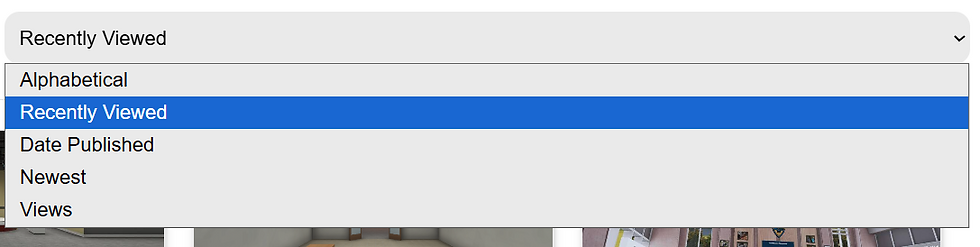
Alphabetical : By name A - Z
Recently Viewed: List of when you last opened Date Published: By your most recent published date Newest: Listed by project creation date
Views: Your most publicly viewed sagens
Filtering Sagens

All - All of your sagens (includes ones you created and others from your organization)
My Sagens - Default - just the sagen projects you created
Organization - Just the sagans from your organization (which would include all public viewable projects within your organization)
Searching Your Sagens
Using the search bar you can type in any keyword that will look for matches in the sagen title and description.


Swapping Organizations :
Clicking upon the organization name will enable you to swap to another organziation if you belong to one.

Note: Be mindful of what organization you are working in as making new drives and projects will be created within the organization you are currently working in.
Managing Account Settings:
To manage your account settings you can press your profile picture:

Pressing The Arrow Button will log you out of your current account

Click the Yellow pencil - Change Account image
Click the Blue Pencil - Reset Password
Do Not Show Controls Popup - Toggles the help controls when viewing sagens Preserve Tour Description State - Toggles whether new tour stops default to showing the stop name and description or not Delete Account - Deletes your account and data - NOTE THIS IS A PERMANENT ACTION
Note: changing your password will require you to reauthenticate on any other device you previously logged into.

