Working with Missions (Beta)

Sagens outfitted with missions create a number of new experience options for your users. Missions enable you to sequence a series of tasks for your guests to complete. Providing them with a structured way to enjoy your content.

Creating a mission

From the left menu select missions and create a new mission.

Edit Mission - Press the pencil button to edit your missions Delete Mission Press the trashcan button to delete a mission
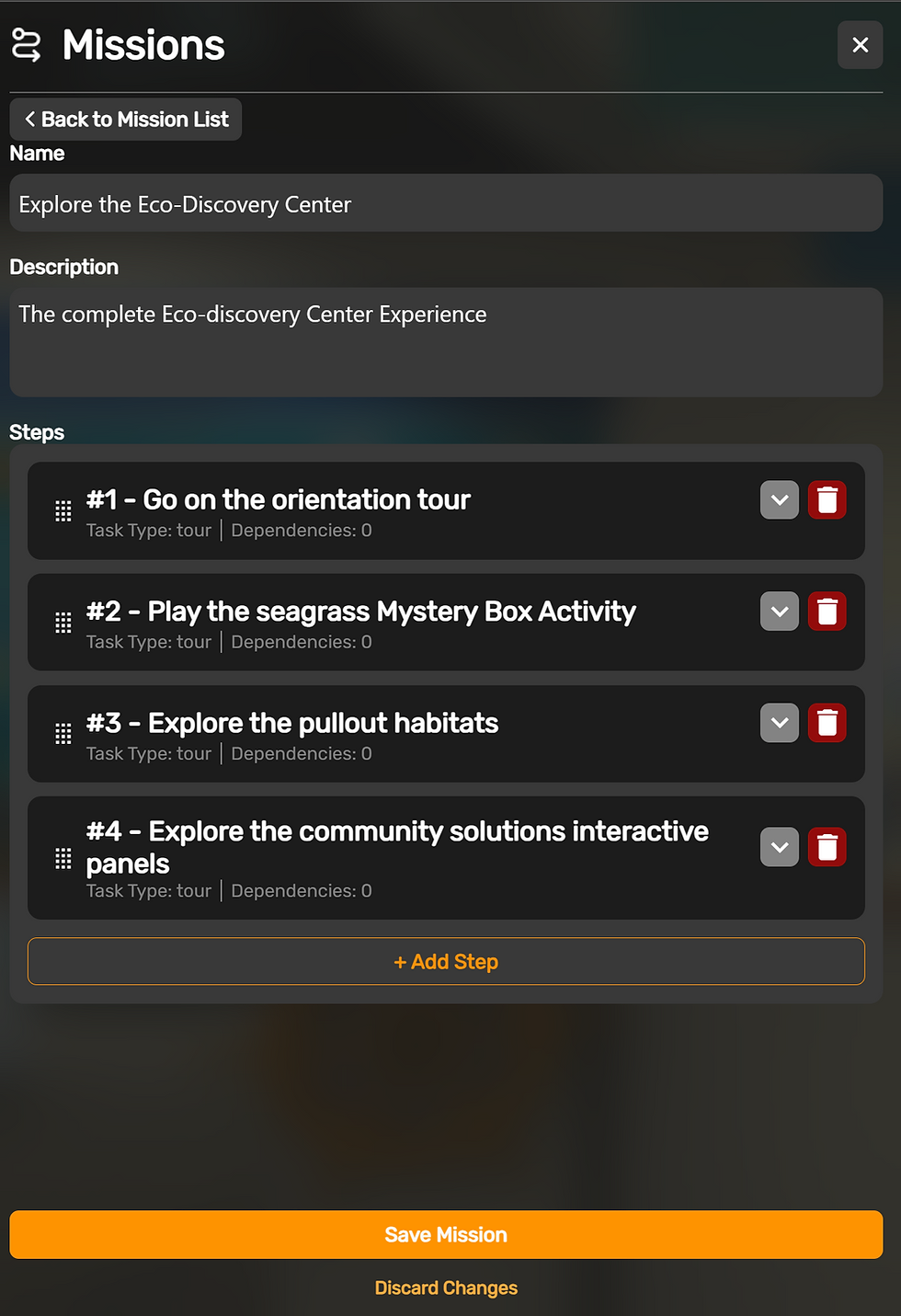
By default, Sagenverse will read the mission list in a linear order. So make sure you organize your steps accordingly.
Each mission step can be reorganized using the left hand drag and drop grips.
Adding Steps to a Mission
Adding a Step - Press "add step" - To add a new step to your mission.
Note - Clicking on the arrow will open and close each step in the list.

Editing A Mission Step
Step Title
Each step needs a name to help you and your guest keep track of the task needs. A good name will help improve the user experience.
Step Description
Expand on the details of the step here - this is visible to your guests when they view details of your step.
Choosing a Step Type

Inspection Task - This requires the user to inspect a file or object within the scene. Press Select Room Object, then the object to inspect in the 3D Editor


Tour: - This requires the user to view a tour in the room


Auto-play tour: When triggered as a valid and available step this tour will auto play.
Note - having multiple tours auto play in the sequence can have unintended results. Be sure to test your mission to ensure a proper user - experience.
Quiz - This requires the user to complete a quiz.
Much like tours, quizzes can also be set to "auto-play". Similarly any auto play item (quizzes or tours) can conflict - so be sure to test your logic and setup.
Setting up a dependencies (advanced)
as you add tasks, you can setup dependencies that gate access to other steps or will "trigger" events. For example, a tour step might not unlock until the viewer clicks on a specific file in the room. Or a quiz may not be taken until the viewer has watched a tour.

Select the task that the current step will check the state of
Choose whether the step must be passed or failed for the current step to be "active" or "available" - Note - failure is only a tracked state of quizzes
Click add Step as Dependency.

Multiple dependencies are supported and can be stacked. For example, a quiz may not be available until the viewer watches a tour, and inspects several files first.
Publishing/Testing a Mission

When publishing or testing your project, make sure your mission is selected in the Auto-start Mission Setting.
Note - Set the mission setting in the share menu before you test your project using the Preview button.
Completing Missions as a guest

Clicking on any of the steps will assist the user in completing the task. (navigate to the inspection item, launch a tour, or launch a quiz)
Clicking on See Full Details will present the full description of the task.
As tasks are completed, they will be removed from the list automatically.


